Follow Docker and Compose logs on macOS
Containers often write to stdout and stderr instead of a file in your project. Docker and Compose expose those streams, and Lognivo brings them into the same workspace as your application logs.
Choose the Docker environment
Use a working local Docker engine, or connect over SSH to a host with Docker available to your account. Select the container or Compose service you want to follow. Access depends on the permissions of your local or remote user.
Compare the services involved
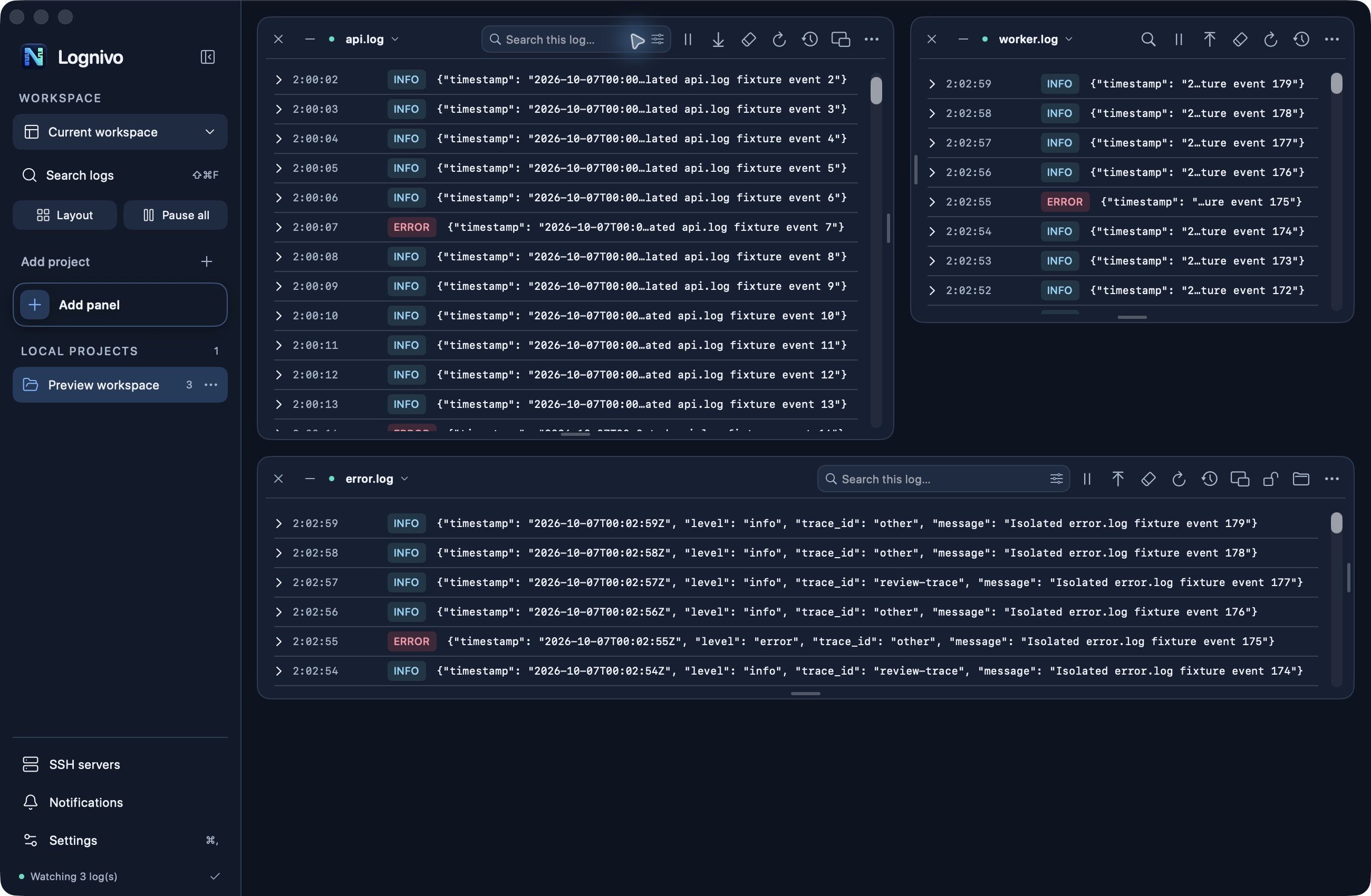
An API, queue worker and reverse proxy may all be involved in one request. Put their streams in separate panels and keep their names visible. Filters belong to each panel, so you can focus one on errors while leaving another unfiltered for context.
Use history deliberately
Lognivo starts with bounded history rather than loading an entire container lifetime into memory. You can adjust the available history controls and pause live reading. Restarted containers and reconnects can change what the underlying engine still makes available.
Keep collection and viewing separate
Docker’s logging driver and retention settings control what the engine stores. Lognivo is a viewer, not a replacement for those settings. For Kubernetes, OpenTelemetry pipelines and cloud log storage, use your existing tools; those integrations are not part of the current release.