Read the WordPress debug log on your Mac
WordPress errors do not all reach the same file. Start with the configured debug log, then put the PHP or web-server log beside it when the message needs more context.
define('WP_DEBUG', true);
define('WP_DEBUG_LOG', true);
define('WP_DEBUG_DISPLAY', false);
Enable logging in a development environment
On a development or staging copy, configure WP_DEBUG and WP_DEBUG_LOG as true and WP_DEBUG_DISPLAY as false in wp-config.php. Edit existing definitions instead of adding duplicates. WordPress normally writes to wp-content/debug.log; WP_DEBUG_LOG can also specify another path.
When debug.log is missing
Trigger the problem again, check the configured path and confirm that WordPress can write there. A log file may not exist before a message is written. Do not make a sensitive log publicly downloadable to solve a permission problem.
Open the files in Lognivo
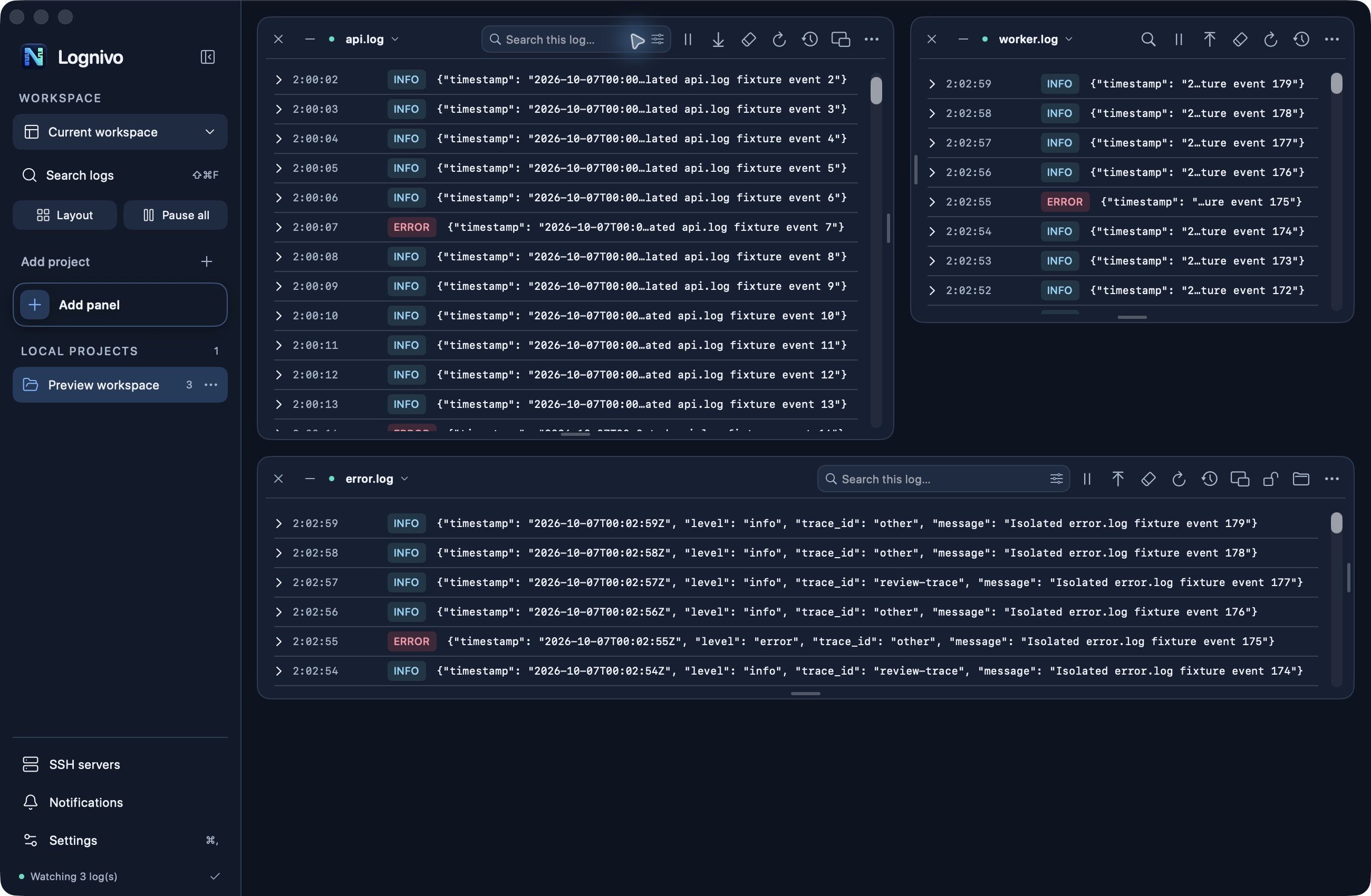
Use Open Log File for a local debug.log or connect to your server over SSH. Add the PHP error log as a second panel. Search for the plugin folder or error text, then expand matching messages. A different file can contain the error that caused the visible symptom.
Keep debugging controlled
WordPress recommends these debug settings for development and staging. Restore your intended logging settings after the investigation. Lognivo reads the chosen files; it does not change WordPress configuration or install a plugin.