Find and read Laravel logs on macOS
Start with your Laravel logging channel rather than assuming every deployment writes the same file. A local file, daily log and container stderr stream need different source choices.
Check the configured logging channel
Inspect your project’s logging configuration and environment. A file-based channel commonly writes under storage/logs, while other channels can send output elsewhere. Choose the actual file or container stream the application uses.
Compare the application and worker
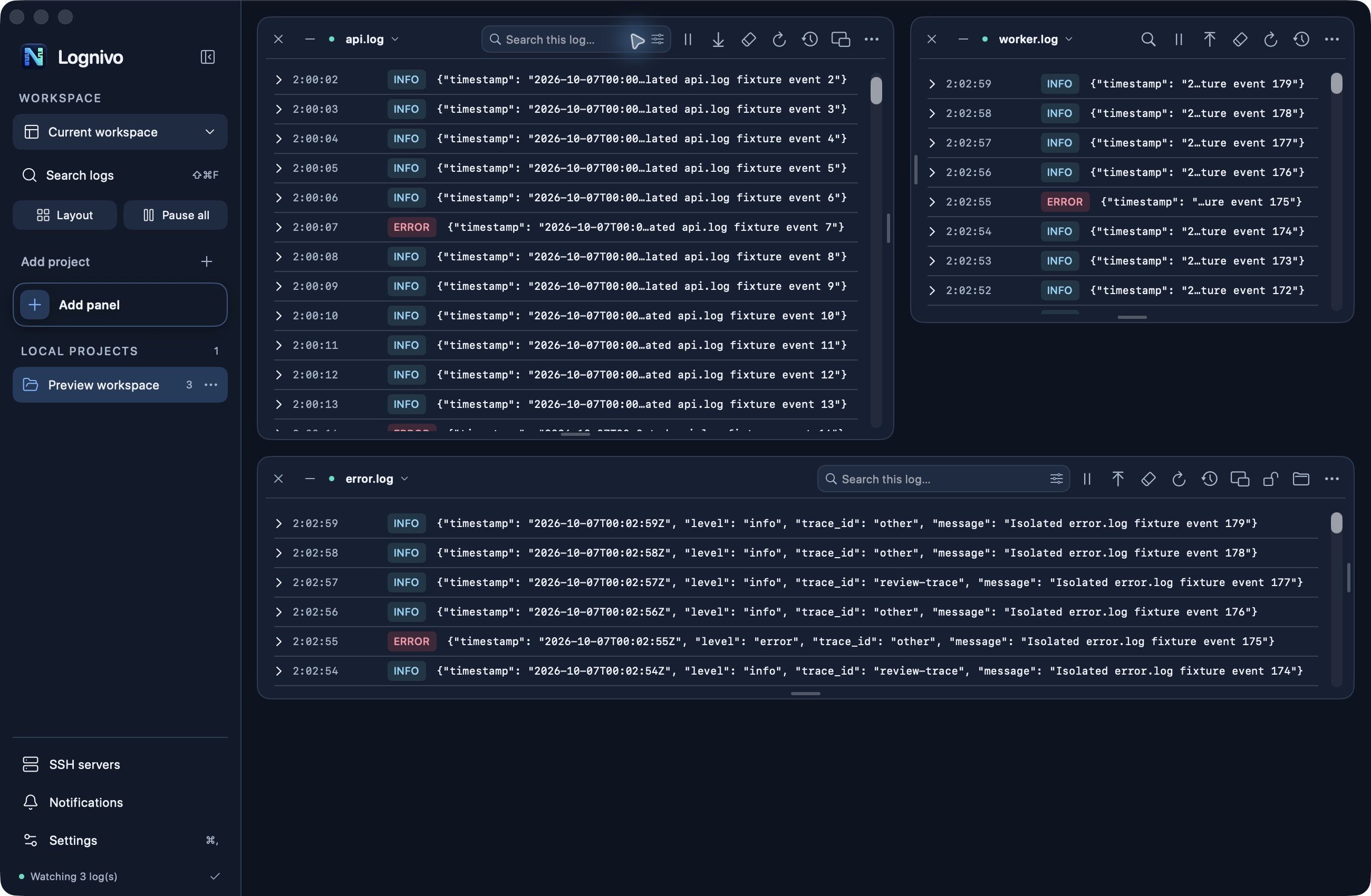
Open the Laravel application log and add the queue worker output as another panel. Search a shared identifier if your application records one. Keep an unfiltered panel visible when surrounding messages are important.
Investigate an exception
Filter by severity or relevant text, pause live output and expand the full entry. Search Across Logs can look beyond the visible panel buffer, within its reported limits. Copy the relevant message for your investigation without changing the file.
Separate reading from maintenance
Artisan maintenance actions are separate from log viewing. Lognivo shows the target before running a command and asks for confirmation for state-changing actions. Check the environment before clearing caches or restarting workers.