A practical guide to viewing logs on a Mac
The right log viewer depends on where your logs live. macOS system events, a local application file and a remote Linux service are different sources. Start with the source, then choose the tool.
Start with the source
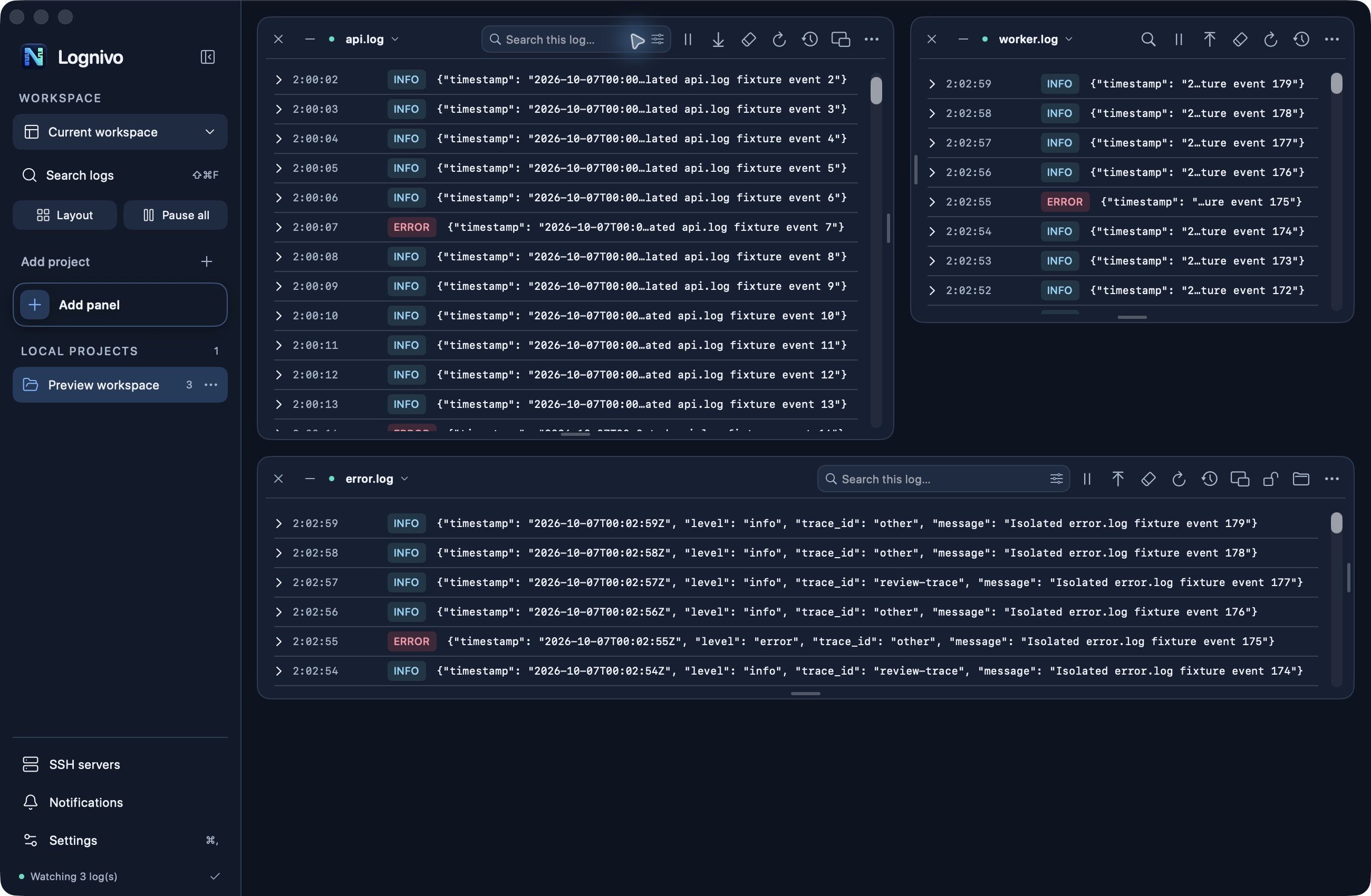
For macOS system events, Apple’s Console is a useful starting point. For a plain text application log, Terminal can show new lines with tail -f. A dedicated workspace becomes useful when you need several sources in view, independent filters and a layout you can return to.
Open files without changing them
In Lognivo, Open Log File adds a panel for an ordinary text log. You do not need to register a framework first. Each panel can pause, change reading order and filter the entries in its buffer. Clear View clears the displayed buffer; it does not empty the file.
Keep the context around an error
A single error line rarely tells the whole story. Put related services side by side and use a trace or correlation ID when one is present. Expand an entry for the full message. Search Across Logs can inspect more than the visible panel history, with bounded reads and reported limits.
Know the limits of a desktop viewer
Lognivo monitors open, unpaused feeds while the app runs. It is not a replacement for always-on server monitoring, long-term log retention or a central incident archive. Keep those responsibilities with your existing infrastructure.