View remote logs over SSH from your Mac
Remote debugging often begins with an SSH session and a path to a log. When a request crosses several services, keeping those sources visible together can make the investigation easier to follow.
Connect to the right environment
Create an SSH connection using your server, user and port. Verify the server’s host key and use an account with only the access you need. Lognivo keeps remote source lists scoped to the selected connection, so a log from another server does not appear as a local source.
Find the application logs
Choose a project folder to discover known project markers and common log directories. You can also browse directly to readable files or use Find server logs. Server permissions determine which files and journals are available; the viewer cannot grant access to restricted logs.
Follow the investigation
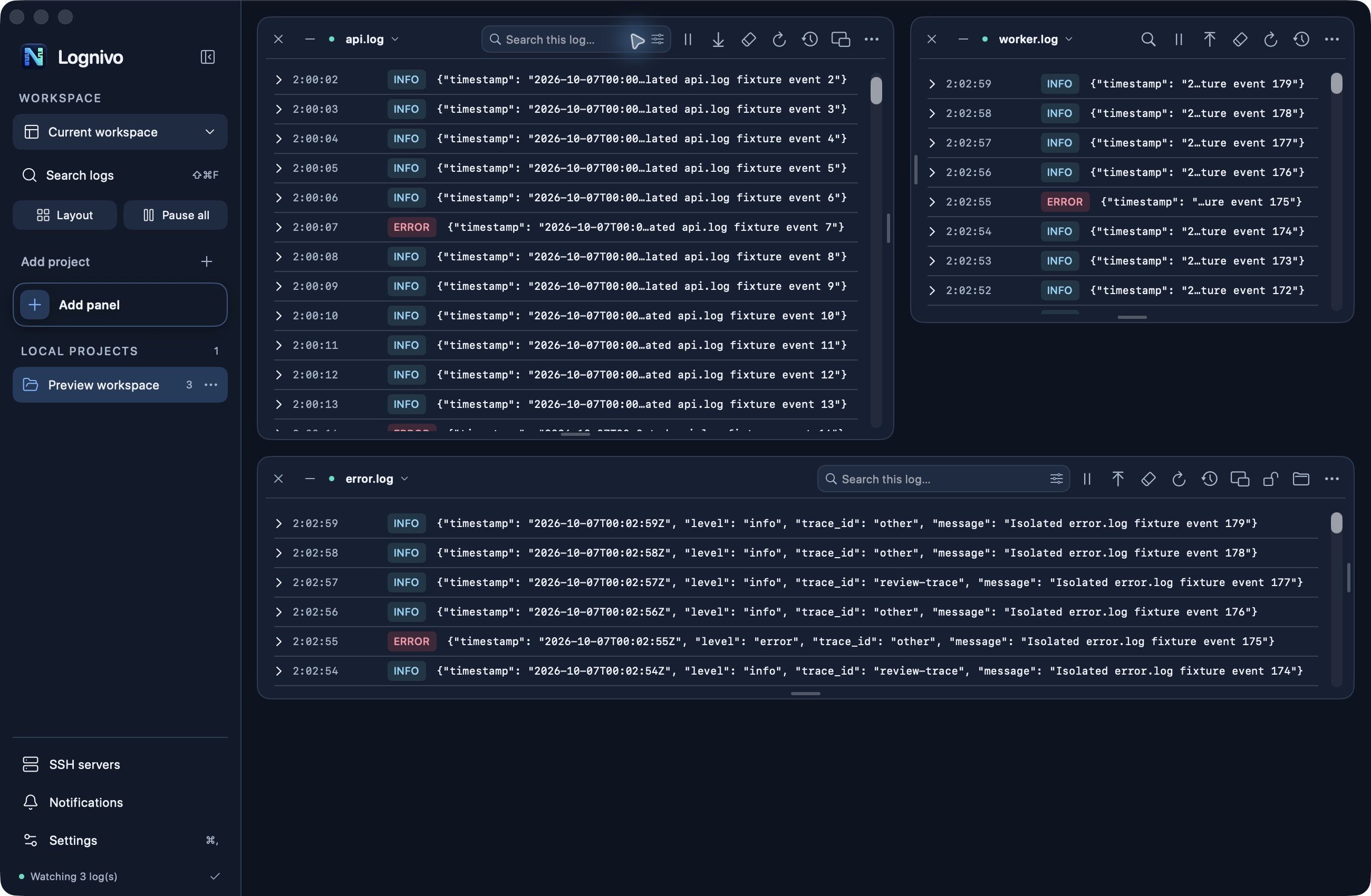
Add the relevant files as panels. Pause a panel to read an entry, filter by severity or search text, and resume when you need fresh output. On reconnect, Lognivo catches up within its configured buffer limits. It does not promise an unlimited archive of everything produced while disconnected.
Understand connection requirements
The current SSH workflow expects Linux or Unix shell tools. Interactive two-factor prompts, jump hosts and SSH-config aliases are not supported yet. Log reading is read-only; separately configured project commands are explicit actions and should be reviewed before running, especially in production.