Connect with the right account
Add the hostname, port and SSH user, then verify the server host key. Use an account with permission to read your logs. Saved connection profiles make the server easy to recognize next time.
 lognivoGet Lognivo
Move from a server path to a readable workspace. Connect to your own SSH server and keep the files you need in view while you investigate.
Find your planRead the practical guide ↗SSH / stagingapplication.log/var/loglognivoOne workspace. Separate panels.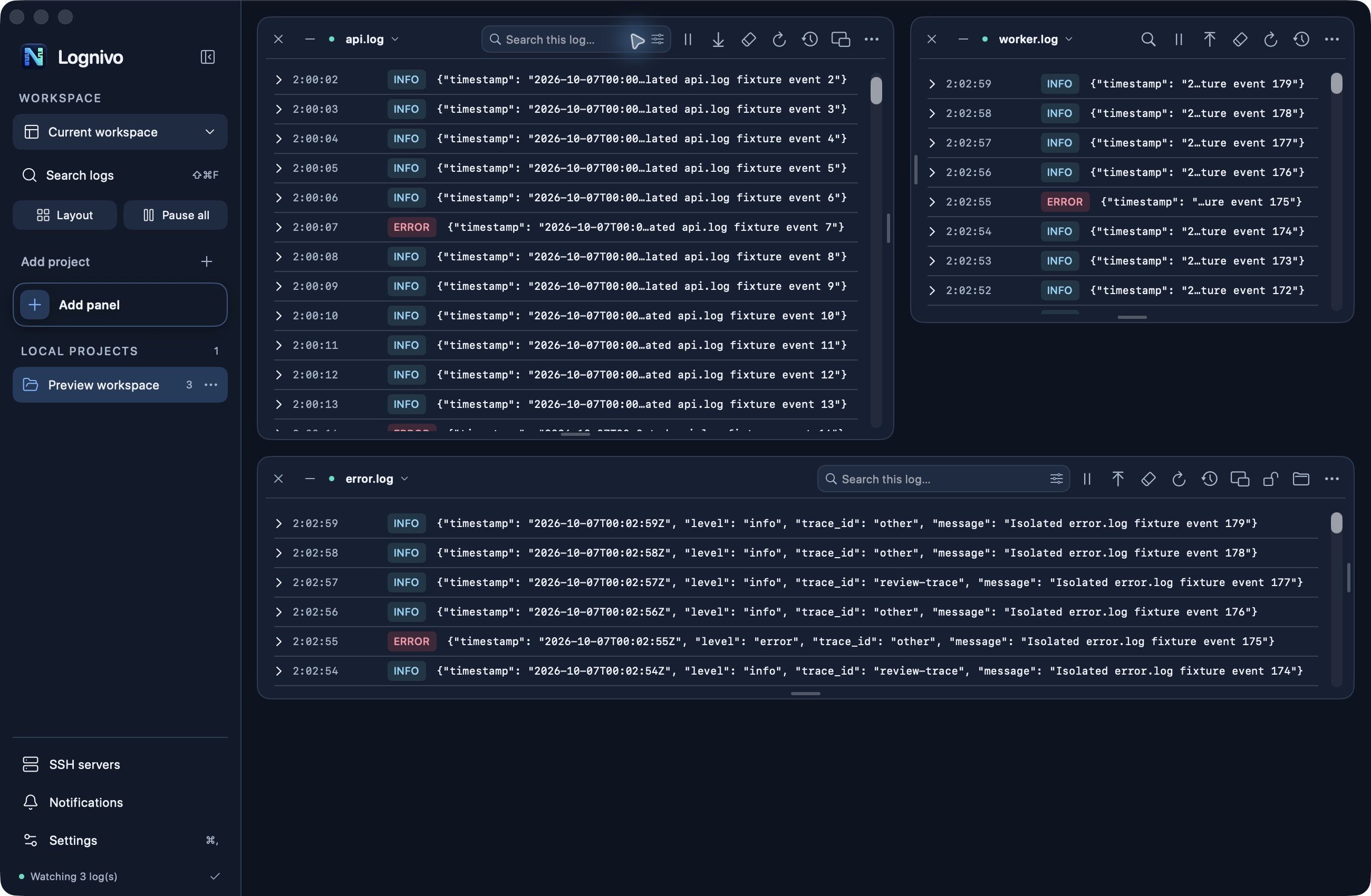
Add the hostname, port and SSH user, then verify the server host key. Use an account with permission to read your logs. Saved connection profiles make the server easy to recognize next time.
Browse to a project or choose Find server logs to look for readable server log files. Log lists belong to their connection, keeping sources from different servers separate.
Use the same panel search, pause, severity filters and reading order as local files. Reconnect catch-up is bounded by the available history, and your server still controls access.
Search, severity filters, reading order and pause stay with their panel. As you resize, secondary actions move into the options menu.
No Lognivo agent is required. The SSH workflow uses available Linux or Unix shell tools and the permissions of your SSH account.
Not in the current release. SSH-config aliases and interactive two-factor prompts are also outside the current connection workflow.
macOS 14+ · Apple silicon & Intel
Get Lognivo for Mac