Choose local or remote Docker
Use a working Docker engine on your Mac, or a Docker host reached over SSH. Your account needs access to the engine. Lognivo reads streams that Docker makes available.
 lognivoGet Lognivo
Your API, queue and reverse proxy do different jobs. Give their logs separate panels and keep the request in context without juggling terminal windows.
Find your planRead the practical guide ↗Docker / apiCompose / workernginx / stderrlognivoOne workspace. Separate panels.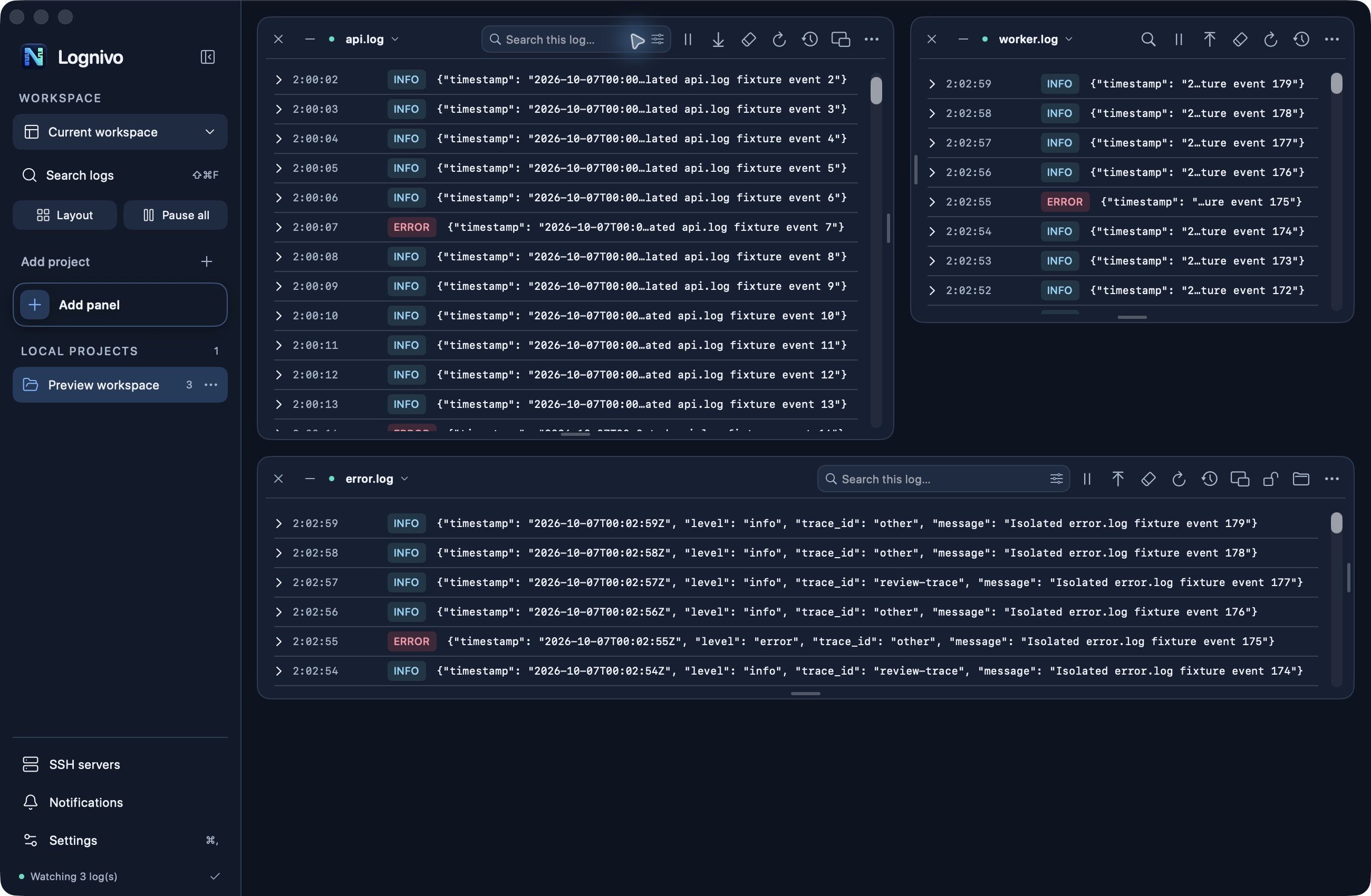
Use a working Docker engine on your Mac, or a Docker host reached over SSH. Your account needs access to the engine. Lognivo reads streams that Docker makes available.
Select a container or Compose service and bring stdout and stderr into your workspace. Keep application file logs next to container output when both are involved in a failure.
Pause noisy output, search for a message and switch reading order per panel. Bounded history keeps a long-running stream from becoming an unbounded desktop buffer.
Search, severity filters, reading order and pause stay with their panel. As you resize, secondary actions move into the options menu.
No. Docker logging drivers and retention settings determine what is stored. Lognivo displays the output available to your account.
Native Kubernetes integration is not part of this release. Docker, Compose, local files and SSH are supported source workflows.
macOS 14+ · Apple silicon & Intel
Get Lognivo for Mac